CASE STUDY
We multiplied x3 the productivity in the creation of e-learning courses at Vodafone

BrainNew
The first AI trained to teach

Author
The #1 AI-powered authoring tool on the market

Factory
Custom e-learning content factory

Skills
Comprehensive power skills course catalog

LMS
All-in-one LMS platform with AI

Engage
App for managing frontline teams
Product

What is Brain?
Everything you need to know about the first AI trained to teach.

How does it work?
Adaptive, conversational, and contextual. That’s learning with Brain.

Security
Why your company’s knowledge never leaves your environment or trains other models.

Comparison
Discover what sets isEazy Brain apart from other AI solutions.

Frequently Asked Questions
Want to learn more? Find answers to all your questions about isEazy Brain here.
FEATURES

AINew
Unlock your full potential and speed up course creation with artificial intelligence.

Accessibility
Automatically meet accessibility guidelines—without sacrificing interactivity!

Interactivity
Boost engagement with interactive, ready-to-use activities that make learning fun.

Course Creation
Reduce the time it takes to create your e-learning courses with our authoring tool.

Distribution
We offer you different distribution options, so that nothing can stop you.

SCORM
Publish your course in SCORM format and share it on any LMS.
SERVICES

Instrucional Design
Surprise your students with multimedia and interactive content.

Custom Courses
We create e-learning courses for you—tailored to your needs and hassle-free!

Virtual Reality
Turn learning into an immersive experience.

Custom Avatars
Give your courses and videos a unique touch with personalized avatars.

Audiovisual FactoryNew
Turn training into something dynamic and visual with engaging videos.
CATALOG

Course catalog
Over 600 skills and competency courses to help you adapt to your team's needs.
Microsoft Copilot AcademyNew
Your professionals will learn how to apply Copilot AI to key processes within your organization.

Artificial Intelligence Academy
Train your teams in the practical use of AI to boost productivity and innovation in your company.

Cybersecurity Academy
Capacita a tu empresa con el catálogo más completo en seguridad digital corporativa.
FEATURES

Learning platform
Manage all your training from one place

Analitycs
Measure the impact of your training

Learning Experience
Offer a unique learning experience to your team
Content Library
Choose from hundreds of expert-created courses
Authoring Tool
Create your own content—faster than ever

Use cases
Choose the solution that best fits your needs

Industries
Solutions for all types of industries
USE CASES

Onboarding
Facilitate the onboarding process, productivity and engagement of your new employees.

Upskilling
Boost your team's skills and prepare them for the challenges of the future with upskilling.

Microlearning
Discover all the advantages of microlearning and boost your training results.

Gamification
Enjoy addictive training that will get your professionals hooked.

Internal Communication
Improve communication in your company and enjoy an aligned and committed team.

Mobile learning
Agile, flexible, and interactive learning—built for today’s digital-first workforce.
INDUSTRIES

Banking and financial services
Training in compliance, cybersecurity, customer service, and key skills development.

Pharmaceuticals and healthcare
Digital onboarding, regulatory updates, and ongoing training for healthcare staff.

Retail and consumer
Agile and scalable training for in-store, operational, and customer service teams.

Industry and manufacturing
Training in processes, safety, and corporate culture for distributed teams.

Education and training
Digital solutions for training centers, internal academies, and corporate universities.

Technology and telecommunications
Development of technical talent, digital skills, and upskilling and reskilling programs.
CLIENTS

MAPFRE
How MAPFRE turn e-learning into sales with isEazy

Pepco
A personalised learning experience for a growing team.

BBVA
Digitisation and creation of high quality e-learning content.

Shiseido
We increase the engagement of the training with a social and gamified app.

Telefónica
Large-scale reskilling for the company's digital transformation.

Vodafone
A personalised learning experience for a growing team.
More than 1,000 companies already rely on isEazy.





MEET ISEAZY

News
Find out the latest news about isEazy: press releases, partnerships, updates...

Contact
Leave us your personal details and we will contact you as soon as possible.
About isEazyNew
Find out more about our company.

Careers
We are looking for the best talent, join our team!

Partners
Become our partner and grow your business.
INTERESTING RESOURCES

Blog
The best content on e-learning: trends, tools and key strategies.

Whitepapers
Gain valuable insights and stay ahead of industry trends.

Product releases
The latest news and releases of our e-learning products and solutions.

Glossary
Definitions of the most commonly used terms and key industry concepts.

Guides
Discover the best step-by-step tips and tricks to optimize your L&D strategy.

Webinars
Video sessions on our products, trends and more

Comparatives
Compare e-learning solutions available on the market and choose the most suitable one.


GUIDE
Prepare your organization to comply with the new AI regulations

Stay up to date with all our latest news
 Subscribe to our newsletter
 Stay up to date with all our latest news

September 29, 2026

CONTENT CREATED BY:

Table of contents
Creating a quality e-learning course involves clearly defined phases. The first is structuring: defining who the course is for, what learning objectives it pursues, what modules it comprises, and what content each one covers. That work is captured in the course outline — the macro document that shapes the course as a whole.
The next phase — and that is exactly what this guide is about — is instructional scripting: taking that approved outline and developing each unit, screen by screen, until the production team has everything it needs to build the course without having to improvise. If you are still in the structuring phase, we recommend starting with how to create an effective course outline. If the outline is already closed, keep reading: this is where the next step begins.
Although closely related, they are distinct documents with distinct purposes. The course outline operates at a macro level: it defines the architecture of the course. The instructional script operates at a micro level: it develops each screen of each module. This distinction is key to keeping the two phases separate and ensuring each one happens at the right moment in the process.
| Dimension | Course outline | Instructional script |
|---|---|---|
| Level of detail | Macro: modules, topics, general objectives | Micro: screen by screen |
| Who creates it | L&D Manager + SME | Instructional designer + SME |
| When it's used | Before scripting: analysis and design phase | Before production: development phase |
| What it defines | Structure, audience, module sequence | Content, interactions, feedback, resources |
| Output | Course map approved by stakeholders | Production plan validated by the SME |
In L&D teams, the instructional script serves three critical functions that go beyond simply “organizing content”:
An industry data point: according to an eLearning Guild study (2022), 67% of rework in corporate e-learning production originates from the lack of a validated scripting document before development begins. Investing time in a solid script always pays off.

An effective instructional script doesn’t need to be complicated — but it does need to be complete. These are the fields that cannot be missing from any row of the template:
Uniquely identifies each screen within each module. A common convention is M1_S03 (Module 1, Screen 3). This field is critical for communication between designers and developers during review and revision cycles.
Each screen must address a concrete objective — not the module’s general objective. Frame it in terms of what the learner will be able to do after that screen, using action verbs from Bloom’s Taxonomy: identify, apply, distinguish, solve. A screen without an objective is a screen that shouldn’t exist.
All text that will literally appear on screen: titles, paragraphs, list items, button labels. It should appear exactly as it will be shown to the learner, in the correct order. If there are state variations (inactive/active button), those need to be specified.
The audio script, separate from the on-screen text. In many courses, the on-screen text and the narration differ: the screen displays the key ideas while the narration explains and contextualizes them. If there is no narration, the field is marked as “no audio” — it is never left blank, because the production team needs to know that’s a deliberate decision, not an oversight.
Description of the resource accompanying the content: photograph, illustration, iconography, video, animation, screenshot. If the resource exists in an approved image library, note its ID. If it needs to be created, describe it in enough detail for the graphic designer to develop it without additional questions.
Specifies what the learner does on this screen: read/advance, click to reveal, multiple choice, drag and drop, sorting, fill in the blanks, branching scenario. This field connects directly to the interaction types available in the authoring tool the production team will use.
For any interactive screen, the script must specify what feedback the learner receives for each possible response: feedback for the correct answer, feedback for incorrect answers, and optionally specific feedback per distractor. This is the field most frequently omitted in less mature scripts — and the one that costs the most time to recover during production.
Notes for the development team: transitions, navigation behaviors (linear, free, locked until completed), timers, conditions for accessing the next screen, references to existing assets. Any information not covered by the previous fields but that the developer needs to build the screen correctly.
A free-text field for designer notes, SME comments during review, or pending items. It functions as the decision log for each screen.
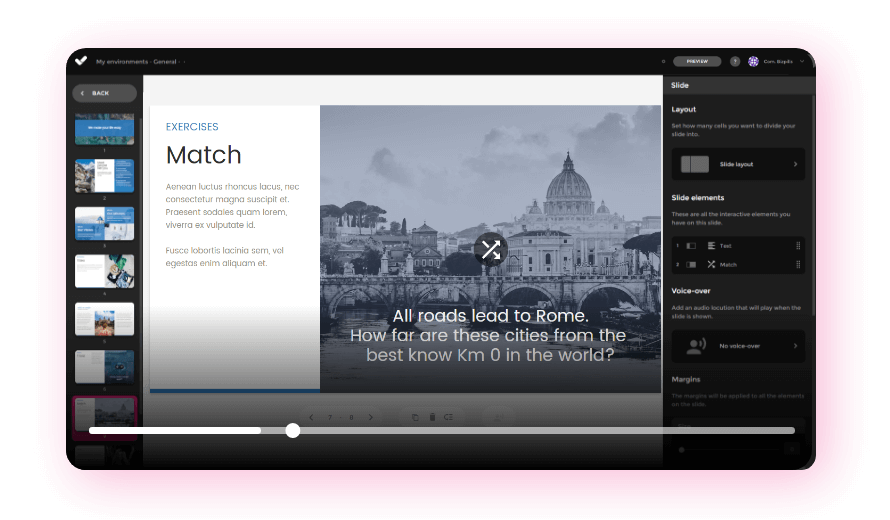
With the course outline approved and the learning objectives defined, the scripting process follows these five steps:
Not all modules require the same level of detail in the script. Before opening the template, decide what level of interactivity the course will have (see next section). This determines how many fields of the script you will be able to complete and how many screens each module will have.
The most common mistake is scripting by sections instead of by screens. One content block can span three different screens. The script works at the screen level because production also works at the screen level.
Starting with each screen’s objective forces the question “why does this screen exist?” before deciding what content or interaction it includes. If the objective isn’t clear, the content won’t be either. This order prevents the bad habit of copying text from the source and adding “decorative” interactions that don’t contribute to learning.
The instructional script is the one document the SME validates before production begins. The review must be specific: the SME confirms the text is accurate, the feedback is pedagogically sound, and the examples accurately represent the learner’s real-world context. This is not a style review — it is a content validation.
If the team uses an authoring tool with predefined templates, it is recommended to attach a reference to the script indicating which screen type in the tool corresponds to each interaction type in the script. This eliminates the developer’s need to interpret the script freely and speeds up production.

The template below is divided into four tables for easier reading, each with three columns. They are designed to be used together: the screen number is the field that links all tables to each other.
How to read the screen codes: each screen is identified with a code such as M1_S01, where M1 indicates the module (Module 1) and S01 the screen (Screen 01). So M2_S03 would be the third screen of the second module. This convention keeps the script organized when the course has multiple modules and makes communication with the production team clearer during reviews and revisions.
Each table includes two example rows filled with a fictional case (a module on incident management) to illustrate how each field is used, and an empty row at the bottom formatted and ready for you to start completing your own script. If you’re also looking for templates for organizing modules and general course objectives, remember those belong to the course outline phase, which comes before scripting.
| Screen | Screen objective | Text / Content (on-screen) |
|---|---|---|
| M1_S01 | Identify the 3 main causes of error X | Title: Why does error X occur?Text: The three most common causes are... (bullet list). Button: NEXT. |
| M1_S02 | Link cause to consequence through a decision | Scenario: 'Your customer says their order arrived damaged. What do you do first?' Options A / B / C |
| [Mx_S0x] | [Describe the specific objective of this screen in terms of what the learner will do or know] | [Write the exact text that will appear on screen, in the correct order] |
| Screen | Narration / Voice-over | Visual resource |
|---|---|---|
| M1_S01 | 'When a customer receives a damaged order, the first response from the support team determines whether the issue gets resolved or escalates. Let's look at the three most common causes.' | Photograph: damaged packaging on a counter. Approved library: ID_0234. |
| M1_S02 | No audio (silent activity). The learner reads the scenario and selects. | Illustration: scenario representation (customer + agent). Brief in resources/M1 folder. |
| [Mx_S0x] | [Write the narration script, or indicate 'No audio' if there is no voice-over] | [Describe the visual resource: type, content, asset reference, or instructions for creating it] |
| Screen | Interaction type | Learner feedback |
|---|---|---|
| M1_S01 | Linear advance. The learner reads and clicks NEXT. | No feedback (expository screen). |
| M1_S02 | Multiple choice (1 correct, 2 incorrect). No attempt limit. | Correct: 'Right. Contacting the customer directly first prevents the complaint from escalating.' Incorrect A: 'The internal form is important, but the customer expects an immediate response first.' Incorrect B: 'Escalating to a supervisor is the last step, not the first.' |
| [Mx_S0x] | [Specify what the learner does: linear advance / click to reveal / multiple choice / drag and drop / etc.] | [Detail the feedback for each possible response, or indicate 'No feedback' for expository screens] |
| Screen | Technical instructions | Notes / Pending items |
|---|---|---|
| M1_S01 | Navigation locked until minimum reading time completed: 15 s. Transition: soft fade-in. | SME confirms the 3 causes are correct. ✅ Validated 12/09/2026. |
| M1_S02 | Quiz-type activity. Navigation locked until answered. Show per-response feedback before advancing. | Pending: review wording of option B with SME (may be confusing). |
| [Mx_S0x] | [Indicate navigation behavior, transitions, timers, or special screen conditions] | [Add designer comments, SME validations, or pending tasks] |
Not all e-learning courses need the same level of detail in the script, nor the same production budget. The industry typically classifies interactivity into four levels that directly affect the script’s volume and production complexity:
For most corporate training programs with standard learning resources, Level 2 is the sweet spot between learning impact and production efficiency. Instructional design determines which level is appropriate for each module before scripting begins.
These are the mistakes that generate the most rework in production — and that a well-structured script prevents from the start:
A well-developed instructional script reduces friction in production. An authoring tool built for corporate L&D teams eliminates it almost entirely. isEazy Author is built around this principle: the designer works with predefined course templates that already include the validated screen types, interactions, and corporate styles. The production team doesn’t need to interpret the script — they simply select the screen type that matches each row and fill in the content.
Vodafone, for example, tripled its productivity in e-learning content creation after implementing isEazy Author in its production workflows, dramatically reducing the time between scripting and publishing. Find out how they did it →
CASE STUDY
We multiplied x3 the productivity in the creation of e-learning courses at Vodafone


The instructional script is not a bureaucratic formality — it is the document that determines whether an e-learning course will have a real impact on learning or remain polished content that no one finishes. Doing it well — with a per-screen objective, specific feedback, and SME validation — is the difference between producing fast and fixing a lot, or producing right from the start.
If you are building your corporate training program from scratch, the complete guide on how to create an online course will give you the full process context. And if you want to go deeper into how to formulate the learning objectives that will guide each screen of your script, the ADDIE model is the most established framework in instructional design.
The next step is to get started: open this guide’s template, assign one row per screen to your first module, and begin with the objective. Everything else flows from there.

Although both terms are often used interchangeably, there is a subtle distinction: an instructional script focuses on learning objectives, the pedagogical sequence, and the feedback the learner will receive, while a storyboard (or visual script) emphasizes the visual representation of each screen — the layout of elements and instructions for the design team. In most corporate e-learning projects, both documents are merged into one that combines the pedagogical and visual layers: it specifies what the learner is meant to learn, what they see, what they do, and what instructions the production team receives. Whether you call it an “instructional script” or an “e-learning storyboard” is largely a matter of preference; what matters is that the document includes all the fields needed for designers, developers, and subject-matter experts to work without ambiguity.
In an L&D team, the instructional script is typically the responsibility of the instructional designer, who has the pedagogical vision of the course: they understand the learning objectives, the target audience, and the most appropriate didactic sequence. In smaller teams where this role doesn’t exist, the script can be developed by the L&D Manager working closely with the subject-matter expert (SME). The standard approach is for the SME to contribute content knowledge while the instructional designer transforms it into a structured learning experience documented screen by screen. The result is always a shared document: the script must be validated by the SME before it reaches the production team, to avoid content errors that become costly to fix once the course is in development.
An instructional script can be created in any tool that supports table-based work and collaborative review. The most common options are Word or Google Docs (table format, easy to share with the SME for review), Excel or Google Sheets (ideal for courses with many screens and several modules in parallel), and PowerPoint (useful when you also want to include a visual mockup of each screen). The choice depends on the size of the team and the review workflow. For high-volume production, dedicated e-learning tools like isEazy Author integrate the scripting process directly with course production: the team works on predefined templates that already include the available interaction types, which reduces the time between scripting and final production.
There is no universal figure, but industry standards suggest that an e-learning module of 10 to 15 minutes typically corresponds to between 15 and 25 screens in the instructional script. The variation depends on the level of interactivity: a module with many activities, branching scenarios, and detailed feedback will have more screens than a primarily expository one. As a practical rule, it is recommended not to exceed 30 screens per module in order to maintain learner engagement. If the content requires more, it is a signal that the module should be split into two. This granularity also facilitates production: short, well-scripted modules are easier to update, localize, and reuse in future training programs.
Yes, but with an important nuance. The templates in an authoring tool like isEazy Author simplify production because they define the available screen types (presentation, activity, assessment, etc.), but they do not replace the instructional script. Without a script, the production team will have to make content decisions during the development phase, which typically generates costly iterations and rework. The script is the validation document signed off by the SME before production begins: it ensures the content is accurate, the sequence makes pedagogical sense, and all stakeholders share the same vision of the final result. Templates accelerate production; the script ensures that what gets produced is actually the right thing.

GUIDE
Prepare your organization to comply with the new AI Regulations
Download guide


Turn your ideas into reality with the most agile resources for creating e-learning courses
Enjoy more productivity, autonomy, and speed with isEazy Author, the easiest authoring tool on the market

Turn your ideas into reality with the most agile resources for creating e-learning courses
Enjoy more productivity, autonomy, and speed with isEazy Author, the easiest authoring tool on the market