Your imagination has no limits. Now, your authoring tool doesn’t either

Brain
The first AI trained to teach

Author
The #1 AI-powered authoring tool on the market

Factory
Custom e-learning content factory

Skills
Comprehensive power skills course catalog

LMS
All-in-one LMS platform with AI

Engage
App for managing frontline teams
Product

What is Brain?
Everything you need to know about the first AI trained to teach.

How does it work?
Adaptive, conversational, and contextual. That’s learning with Brain.

Security
Why your company’s knowledge never leaves your environment or trains other models.

Comparison
Discover what sets isEazy Brain apart from other AI solutions.

Frequently Asked Questions
Want to learn more? Find answers to all your questions about isEazy Brain here.
FEATURES

AINew
Unlock your full potential and speed up course creation with artificial intelligence.

Accessibility
Automatically meet accessibility guidelines—without sacrificing interactivity!

Interactivity
Boost engagement with interactive, ready-to-use activities that make learning fun.

Course Creation
Reduce the time it takes to create your e-learning courses with our authoring tool.

Distribution
We offer you different distribution options, so that nothing can stop you.

SCORM
Publish your course in SCORM format and share it on any LMS.
SERVICES

Instrucional Design
Surprise your students with multimedia and interactive content.

Custom Courses
We create e-learning courses for you—tailored to your needs and hassle-free!

Virtual Reality
Turn learning into an immersive experience.

Custom Avatars
Give your courses and videos a unique touch with personalized avatars.

Audiovisual FactoryNew
Turn training into something dynamic and visual with engaging videos.
CATALOG

Course catalog
Over 600 skills and competency courses to help you adapt to your team's needs.
Microsoft Copilot AcademyNew
Your professionals will learn how to apply Copilot AI to key processes within your organization.

Artificial Intelligence Academy
Train your teams in the practical use of AI to boost productivity and innovation in your company.

Cybersecurity Academy
Capacita a tu empresa con el catálogo más completo en seguridad digital corporativa.
FEATURES

Learning platform
Manage all your training from one place

Analitycs
Measure the impact of your training

Learning Experience
Offer a unique learning experience to your team
Content Library
Choose from hundreds of expert-created courses
Authoring Tool
Create your own content—faster than ever

Use cases
Choose the solution that best fits your needs

Industries
Solutions for all types of industries
USE CASES

Onboarding
Facilitate the onboarding process, productivity and engagement of your new employees.

Upskilling
Boost your team's skills and prepare them for the challenges of the future with upskilling.

Microlearning
Discover all the advantages of microlearning and boost your training results.

Gamification
Enjoy addictive training that will get your professionals hooked.

Internal Communication
Improve communication in your company and enjoy an aligned and committed team.

Mobile learning
Agile, flexible, and interactive learning—built for today’s digital-first workforce.
INDUSTRIES

Banking and financial services
Training in compliance, cybersecurity, customer service, and key skills development.

Pharmaceuticals and healthcare
Digital onboarding, regulatory updates, and ongoing training for healthcare staff.

Retail and consumer
Agile and scalable training for in-store, operational, and customer service teams.

Industry and manufacturing
Training in processes, safety, and corporate culture for distributed teams.

Education and training
Digital solutions for training centers, internal academies, and corporate universities.

Technology and telecommunications
Development of technical talent, digital skills, and upskilling and reskilling programs.
CLIENTS

MAPFRE
How MAPFRE turn e-learning into sales with isEazy

Pepco
A personalised learning experience for a growing team.

BBVA
Digitisation and creation of high quality e-learning content.

Shiseido
We increase the engagement of the training with a social and gamified app.

Telefónica
Large-scale reskilling for the company's digital transformation.

Vodafone
A personalised learning experience for a growing team.
More than 1,000 companies already rely on isEazy.





MEET ISEAZY

Events
Discover our upcoming events and connect with the future of e-learning.

News
Find out the latest news about isEazy: press releases, partnerships, updates...

Contact
Leave us your personal details and we will contact you as soon as possible.
About isEazyNew
Find out more about our company.

Careers
We are looking for the best talent, join our team!

Partners
Become our partner and grow your business.
INTERESTING RESOURCES

Blog
The best content on e-learning: trends, tools and key strategies.

Whitepapers
Gain valuable insights and stay ahead of industry trends.

Product releases
The latest news and releases of our e-learning products and solutions.

Glossary
Definitions of the most commonly used terms and key industry concepts.

Guides
Discover the best step-by-step tips and tricks to optimize your L&D strategy.

Webinars
Video sessions on our products, trends and more

Comparatives
Compare e-learning solutions available on the market and choose the most suitable one.


September 4, 2026

CONTENT CREATED BY:

Table of contents
Most professionals admit that, at some point, they’ve mentally checked out during a presentation. It’s not for lack of interest — it’s because we keep communicating ideas in a one-directional way, with long, dense presentations and very little interaction.
If you want your internal training to actually work — onboarding, compliance, reskilling, product training — you need to make the leap to interactive presentations applied to e-learning: formats where users don’t just watch, but participate, make decisions, answer questions and receive feedback in real time.
In this guide you’ll find everything you need: what interactive presentations are, why they work, the 10 best tools to create them, real examples and how to go from a PowerPoint to a measurable training resource with isEazy Author.
Interactive presentations transform the expository format into an experience format. In corporate training, learners don’t just consume information — they interact, practise, respond and receive feedback. A traditional presentation is linear and one-directional. An interactive presentation invites action: clicking on elements, exploring sections, answering questions, completing micro-activities. According to Brandon Hall Group’s 2024 State of L&D report, organisations using interactive content in their training report completion rates up to 40% higher than passive formats.
That’s why more and more organisations use interactive presentations for:
The future isn’t about making presentations look better — it’s about making them more participatory, more effective and more measurable. Learn more about interactive learning and why it drives real results.
Before choosing a tool, it helps to understand exactly what changes when you move from a conventional presentation to an interactive one. The difference isn’t just visual — it affects the user’s role, the type of content, the learning experience and, above all, the ability to measure results.
| Aspect | Traditional presentation | Interactive presentation |
|---|---|---|
| Structure | Linear and closed | Flexible navigation by routes or sections |
| User role | Passive — only consumes information | Active — explores, decides and participates |
| Interaction | None or minimal | Clicks, hotspots, menus, questions, activities |
| Content | Static text and images | Multimedia: video, audio, animations, scenarios |
| Pace | The same for everyone | Customisable by profile or need |
| LMS export | No SCORM or tracking | SCORM/xAPI: full tracking from LMS |
| Measurement | No tracking possible | Measurable: answers, progress and results |
| Typical goal | Inform in the moment | Learn, retain and apply knowledge |
| Experience | More exposition | Real, active learning experience |
Creating interactive presentations in 2026 isn’t just about adding buttons or inserting a video. In corporate training, an interactive presentation only makes sense if it works as a complete learning resource: not just engaging, but guiding the learner, validating comprehension and enabling progress measurement. Here are the 6 key features any tool you choose should meet:
Users can explore content through different routes: choosing topics, jumping to sections, going deeper only where they need it. This connects directly with microlearning: short formats where the user decides what to consume and in what order, without following a set path.
Audiovisual content doesn’t just make the format more dynamic — it also helps comprehension and retention. Mayer’s (2009) multimedia learning research demonstrates significant improvements in retention when text is combined with relevant images and audio versus plain text alone. A well-integrated 90-second video can replace pages of documentation.
Interaction isn’t the same as playing, but it draws on dynamics like short exercises, mini-games, “choose the right answer” challenges or real-life situation roleplays. In corporate training, 3 highly active minutes are more effective than 20 passive ones. isEazy Author includes over 25 types of interaction and games ready to use without any coding. Learn more in our guide to interactive learning.
The presentation must work equally well on mobile, tablet and desktop. If it forces users to zoom or the touch navigation fails, the experience breaks down and engagement drops. For field teams, retail staff or people who work mostly on the go, this isn’t a nice-to-have — it’s a requirement.
In 2026 accessibility is no longer optional. Automatic subtitles, keyboard navigation, correct contrast, visible focus, text alternatives for images… WCAG AAA compliance not only gives access to people with disabilities — it improves the overall experience for all profiles and is mandatory in many public bodies and large enterprises. isEazy Author applies WCAG AAA accessibility automatically, with no manual configuration needed. Learn more about accessible courses with isEazy.
Generative AI is now part of the content creation cycle: from generating the pedagogical structure to suggesting activities, text, voiceovers or visual resources. The key isn’t using AI for the sake of it, but applying it to create content faster and with quality without losing coherence. In isEazy Author, the AI Autopilot generates complete courses from a document or an idea, including exercises and assessments automatically.

Interactive presentations are no longer seen just as a more dynamic way to teach or communicate. In 2026 they’re becoming a strategic format: faster to create, more personalised and more aligned with how we consume information today — short, visual, participatory and across multiple devices.
AI is changing the starting point. Before, creating an interactive presentation took hours or days. Now many organisations work with tools that generate a first version automatically: structure, content, exercises, images and even voiceovers or virtual presenters. According to LinkedIn Learning’s AI Skills Report 2024, 89% of L&D professionals consider AI for learning content creation to be a strategic priority. The key isn’t replacing the instructional designer, but accelerating repetitive tasks so the team can focus on what matters: the pedagogical approach and real impact.
In corporate training, one-size-fits-all content is increasingly ineffective. The clear trend is creating content adapted by profile: role, seniority, country, language or level of experience. In interactive presentations, this translates into differentiated routes — choose your profile, choose your challenge, choose your case — and content that adjusts in real time based on the user’s selection. Without creating multiple versions of the same resource.
The long-session format is no longer the only standard. More and more teams are embracing microlearning: interactive capsules of 3 to 5 minutes — one concept, one practice, one question, feedback and close. Especially effective for frontline workers, compliance reinforcement, internal updates and continuous training: users learn at the moment they need it, without interrupting their working day.
Another strong trend is using interactive visualisations to build a story with data: evolving results, detected risks, training programme progress or quality indicators. This isn’t about filling slides with charts — it’s about letting users actively explore data and draw their own conclusions.
In 2026 there are more presentations with navigable 360° environments, lightweight simulations and branching scenarios that run from a browser and mobile, without specialist hardware. Especially useful for technical training, facility onboarding, occupational risk prevention or complex operational processes.
Not all interactive presentation tools serve the same purpose. Some are designed to turn content into complete e-learning courses with LMS tracking; others for creating visually impactful presentations; and others work as add-ons to add in-the-moment interaction during live sessions. We’ve organised them by category so you can identify which fits your real objective.
| Tool | Category | SCORM / LMS |
|---|---|---|
| isEazy Author | E-learning authoring tool | Measurable corporate training with AI |
| iSpring Suite | E-learning authoring (PPT add-in) | Convert PPT into e-learning |
| Articulate 360 | Advanced authoring tool | Courses with advanced branching |
| Prezi | Dynamic visual presentation | Visual impact and storytelling |
| Genially | Interactive visual presentation | Visual engagement |
| Canva | Quick visual design | Internal presentations and marketing |
| Mentimeter | Live engagement | Energize synchronous sessions |
| Nearpod | Synchronous/asynchronous educational | Interactive educational lessons |
| Pear Deck | Educational (Google Workspace) | Classroom participation |
| Beautiful.ai | Visual presentation with AI | Fast professional presentations |
These are platforms designed to create interactive learning content with full pedagogical logic: assessments, module navigation, SCORM/xAPI export and LMS tracking. The best option when your goal isn’t just to present, but to train, assess and measure learning.
isEazy Author is the AI-powered authoring tool designed to turn content into interactive corporate training — with a clear focus: creating high-quality courses in far less time. Its standout feature in 2026 is the AI Autopilot, which generates complete courses from documents (Word, PDF, PowerPoint) or from a simple idea, automatically proposing a pedagogical structure, content, activities and assessments.
It lets you create interactive courses with over 25 types of ready-to-use elements — no coding needed: games, exercises, branching scenarios, interactive video and multimedia resources. It includes automatic WCAG AAA accessibility, direct PowerPoint import and SCORM export compatible with any LMS. All in all, the most complete option for moving from presentations to measurable, reusable courses ready for diverse audiences.

Features
Benefits
Pricing
Accessibility
Awards
Features
Benefits
Pricing
Accessibility
Awards
Your imagination has no limits. Now, your authoring tool doesn’t either
Discover the new AI Autopilot from isEazy Author


iSpring Suite is very popular with companies that work heavily with PowerPoint and want to move towards e-learning without abandoning their usual way of creating content. It works as an integrated add-in in PowerPoint, adding quizzes, dialogue simulations, screen recordings and enriched content. Practical when the starting point is already-created slides and you want to add interaction without redesigning from scratch. Compared to native e-learning authoring tools, its interactivity can be more limited and relies heavily on the PowerPoint ecosystem — worth considering if you have Mac users or need fully cloud-based workflows.

Key Features
Benefits
Pricing
Key Features
Benefits
Pricing
Articulate 360 combines Storyline (advanced authoring with complex branching, variables, triggers and detailed simulations) and Rise (responsive courses with pre-designed content blocks like accordions, flashcards and timelines). Storyline is the industry reference for advanced instructional design: it allows building highly specific experiences with custom logic. The learning curve is significantly steeper than other tools and works best when there’s a dedicated instructional design team. For organisations wanting many internal subject matter experts to create content autonomously and quickly, it can become a bottleneck.

Key Features
Benefits
Pricing
Key Features
Benefits
Pricing
The best option when the goal is visual impact, narrative and dynamism: pitches, commercial presentations, storytelling for events or internal communications. Their interactivity is more focused on navigation and visual experience than on assessment or learning tracking.
Prezi breaks away from the traditional slide format with a navigable canvas and dynamic zoom between concepts, allowing narratives where users “travel” through ideas rather than advancing slide by slide. Very effective for commercial presentations and conferences where the goal is to capture attention and create visual impact. In recent years it has incorporated AI to generate presentations from text prompts and Prezi Video to integrate the presenter’s camera into the content. It doesn’t generate SCORM or allow LMS tracking.

Features
Advantages
Ideal for
Creative professionals who need:
Educators who want to:
Limitations:
Features
Advantages
Ideal for
Creative professionals who need:
Educators who want to:
Limitations:
A platform for creating visual and interactive content without advanced design skills, with an extensive catalogue of templates (presentations, infographics, gamification, escape rooms) and interactive layers: buttons, tooltips, pop-up windows and personalised navigation paths. Very useful for internal communications, product presentations or awareness materials. It allows publishing in SCORM 1.2 and LTI 1.3 for LMS integration, although its focus remains on visual engagement rather than deep pedagogical assessment.

Features
Advantages
Ideal for
K-12 and university educators who want to:
Marketing teams for:
Internal corporate communication for:
Limitations:
Features
Advantages
Ideal for
K-12 and university educators who want to:
Marketing teams for:
Internal corporate communication for:
Limitations:
The most widely used tool for quick visual design. Templates, a massive resource library and Magic Design with AI to generate coherent presentations in minutes. Ideal for internal presentations, storytelling and support materials. It’s not focused on assessments, formative feedback or SCORM export, making it unsuitable when the goal is measurable training.

Features
Advantages
Ideal for
Entrepreneurs and small businesses that need:
Marketing teams for:
Educators who want to:
Limitations:
Features
Advantages
Ideal for
Entrepreneurs and small businesses that need:
Marketing teams for:
Educators who want to:
Limitations:
Designed for energising synchronous sessions: webinars, in-person or hybrid training. Powerful for maintaining attention in real time and gathering audience insights on the spot. They don’t generate reusable e-learning content measurable from an LMS, so they’re complementary — not substitutes — for an authoring tool.
Specialised in energising live presentations with polls, word clouds, rankings, open questions and quizzes with real-time results. The audience participates via mobile by entering a code — no installation needed. Allows exporting responses for later analysis. Very powerful for workshops, internal meetings and corporate events where you want to measure opinion and maintain active attention.

Features
Advantages
Ideal for
</ul
Workshop facilitators who need to:
Companies for:
Educators for:
Limitations:
Features
Advantages
</ul
Ideal for
Workshop facilitators who need to:
Companies for:
Educators for:
Limitations:
An educational platform for creating interactive lessons with integrated activities: quizzes, polls, collaborative exercises, drawing activities and immersive resources including 360° tours. Supports synchronous sessions (instructor-paced) and asynchronous (self-paced). Primarily designed for K-12 and higher education environments, which may limit its fit for companies that need corporate LMS standards.

Features
Advantages
Ideal for
K-12 teachers who need to:
Educational institutions to:
Limitations:
Features
Advantages
Ideal for
K-12 teachers who need to:
Educational institutions to:
Limitations:
A complementary tool for Google Slides and PowerPoint that turns existing presentations into participatory experiences: drag-and-drop questions, real-time responses (anonymous or public), integrated audio and video. Very popular in Google Workspace for Education ecosystems. Fundamentally educational in focus, without SCORM, which limits its use for scalable corporate training.

Features
Advantages
Ideal for
K-12 educators who:
Schools that prioritize:
Limitations:
Features
Advantages
Ideal for
K-12 educators who:
Schools that prioritize:
Limitations:
Automates presentation layout as content is added: intelligently adjusts structure, alignment and composition to maintain a clean, consistent result. Very useful for consulting, sales or executive teams who create many presentations and need speed without sacrificing visual quality. No assessment, learning path or SCORM features.

Features
Ideal for
Teams that frequently create presentations:
Companies that value:
Limitations:
Features
Ideal for
Teams that frequently create presentations:
Companies that value:
Limitations:
Although sometimes used interchangeably, an interactive presentation and an e-learning course don’t serve exactly the same purpose. The key is your objective: do you want to communicate an idea or generate real, measurable learning? Many companies start by creating more dynamic presentations and, when they need to scale training or measure results, evolve towards complete e-learning content. With tools like isEazy Author you can make that transition easily, and our guide on how to create effective presentations helps you take the first step.
| You need a presentation if... | You need an e-learning course if... |
|---|---|
| The session is live (webinar, class, event) | Learning is asynchronous and autonomous |
| Duration is under 30 minutes | You need a complete learning experience (1–4 hours) |
| You don't need assessment or tracking | You need to measure acquired knowledge |
| The goal is visual impact or storytelling | You need tracking, certification and LMS reporting |
| Your audience is in-person or live | Your teams are distributed and work at different paces |
| Content changes frequently | Content is stable and needs to scale to many users |
The good news is you don’t have to choose: isEazy Author covers both worlds. You can create a high-impact interactive presentation or turn it into a complete SCORM course with assessment and tracking, without starting from scratch. If you already have PowerPoints, you can convert them directly to SCORM or use the PowerPoint import feature to transform them into interactive courses.
One of the great advantages of interactive presentations is their flexibility: they work both for live sessions and as e-learning microcourses your team completes at their own pace. In corporate training, that opens up many possibilities. Here are 5 common use cases where this format makes a real difference:
Onboarding often starts with a PDF nobody reads in full. With interactive presentations you can transform that content into a more guided, memorable experience: role-based module navigation, short welcome videos, “choose the right answer” questions, first-day situation simulations and a comprehension test at the end. The result: new employees don’t just receive information — they understand processes and company culture from day one. To take the next step, check out our guide on how to create an online course.
For commercial, support or retail teams, product training needs more than slides. An interactive presentation can create a navigable catalogue by product line, features or customer profile, with simulations like “what would you recommend in this case”, model comparisons or sector-specific talking points. The team learns to apply the product in real situations, not just describe it from memory.
Compliance is one of the clearest use cases: content must be understandable, but there must also be evidence it’s been completed and understood. These work very well when they include comprehension questions per section, immediate feedback on errors and a final test with passing criteria. By converting to an e-learning course with SCORM, you can manage certification and tracking directly from the LMS.
Instead of a generic pitch for all clients, an interactive presentation with personalised paths lets each client see the cases, examples, data and benefits that are actually relevant to them — without maintaining 10 different versions of the same file. This dramatically improves engagement because the content feels tailored and relevant to each industry or profile.
In webinars and hybrid events, the difference between a present and a “ghost” audience is usually interaction. With live polls, team quizzes, voting and open questions you can maintain attention, gather valuable insights and turn an expository session into a participatory experience. And the best part: that content can afterwards be reused as an on-demand e-learning resource.
Clarel, a retail chain with over 600 points of sale across Spain, converts its training presentations into interactive courses with isEazy Author to train all its employees simultaneously on corporate culture, customer service protocols and product knowledge. Thanks to this approach, they achieved an 84% engagement rate and ensured their entire store network received the same training simultaneously, without depending on in-person sessions. Discover how Clarel trains all its teams with isEazy →
One of the most common starting points in corporate training is a library of PowerPoints the team already uses for face-to-face sessions. The good news is you don’t need to start from scratch: you can transform those presentations into interactive, measurable resources in very little time by following this process.
Before importing anything, review the file critically: is the content still relevant and up to date? Is there too much text per slide? Is it structured in clear sections with one learning objective per module? If the original PPT has structural issues, the interactive version will amplify them. This is the moment to simplify, reorganise and define what you want users to have learned by the end of each section.
With isEazy Author you can import your PowerPoint directly and convert it into a structured course, preserving the original design and adding interactive layers on top. The process respects fonts, images and layout, giving you a base to build on without redoing anything from scratch. You can also convert a PowerPoint to SCORM directly if what you need is to upload it to an LMS with tracking from day one.
This is the key that distinguishes a mediocre conversion from a good one: it’s not about adding clicks for the sake of it. For each course section, ask yourself: what should the user be able to do here to demonstrate they’ve understood? The most effective options are comprehension questions at the end of each module, “what would you do” scenario choices, drag-and-arrange exercises for processes, and videos or audio that reinforce the explanation. isEazy Author has over 25 types of interactive elements ready to insert without coding.
An interactive presentation that doesn’t assess doesn’t generate data. Define a final test with at least 5–10 questions, set a minimum passing threshold (typically 70–80%) and configure feedback for incorrect answers. For compliance courses, also store the completion certificate. With SCORM export, all this data is recorded automatically in your LMS without manual intervention.
Once the course is published, the work doesn’t end. Review the analytics: where do most people drop off? What’s the test pass rate? Are there questions everyone gets wrong (suggesting the content isn’t clear)? This data is gold for improving the next version. Tools like isEazy Author offer integrated tracking dashboards for data-driven decisions, without relying on manual LMS reports.
Most L&D teams make the same mistakes when they start creating interactive presentations. Spotting them before production saves weeks of work and wasted resources.
The most common error: converting slides to “click to reveal” without asking why. Interactivity isn’t an end in itself — it’s a means to help users practise, reflect or demonstrate they’ve understood something. Before inserting any interactive element, ask: what do I want users to be able to do after this module? If you can’t answer that, the interaction is decorative.
Adding accessibility at the end of the process is up to five times more costly than designing it in from the beginning. Without subtitles on videos, text alternatives for images, keyboard navigation and adequate contrast, you’re excluding part of your audience and in many cases breaching legal requirements. Tools like isEazy Author apply WCAG AAA accessibility automatically so the team doesn’t have to manage it manually.
Publishing a course without knowing how you’ll measure its impact is like launching a campaign without metrics. Before publishing, define at least: target completion rate, minimum test score and expected average session time. This data lets you compare, iterate and justify training investment to management.
The temptation to pack all knowledge into a single resource leads to 80-slide presentations nobody completes. The general rule in corporate training: one resource, one learning objective. If the content needs more, break it into microlearning modules: 3 to 5-minute capsules users can complete any time.
In sectors like retail, logistics, hospitality or healthcare, a large portion of training staff access content on mobile, often between shifts. An interactive presentation that doesn’t work well on a small screen has a much higher abandonment rate. Always design with responsive in mind from the first slide, and test the result on mobile before publishing.
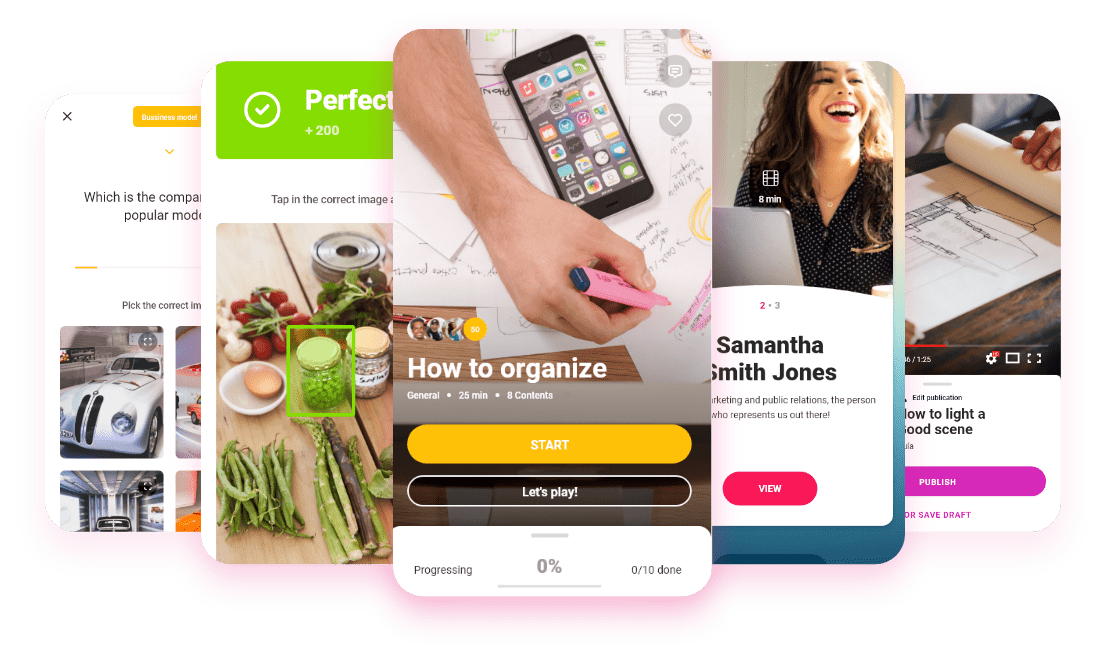
Before publishing your interactive presentation in the LMS, run through this checklist. It’s the filter that distinguishes a resource that works from one that arrives broken, doesn’t track data or excludes part of the audience.
If you’ve ticked all the boxes, your interactive presentation is ready. If any are outstanding, resolve them before launch — fixing technical issues after users have already started is far more costly in time and credibility.

Interactive presentations in 2026 are one of the most effective ways to capture attention and turn information into real learning. But when it comes to genuine corporate training — onboarding, product training, compliance or skills development — what makes the difference is converting that interaction into a complete, measurable and scalable e-learning course.
The approach should always be the same: move from showing content to designing experiences. Content that guides learners, gets them involved, lets them practise and gives you visibility into progress and results. And that starts with choosing the right tool for your real objective.
If you want to make that leap, start with the easiest path: reuse what you already have — PowerPoints, PDFs, internal manuals — and transform them into interactive courses with isEazy Author. Organisations like Clarel, MAPFRE and Vodafone are already doing this to accelerate their continuous learning strategy without increasing the team’s workload. And if you’re not sure where to start, our guide on how to create an online course walks you through the full process.
Although they share elements, they’re not the same thing. An interactive presentation is designed to communicate an idea dynamically — users can click, explore and navigate, but it doesn’t always include assessment or tracking. An e-learning course is a complete learning resource: it has a pedagogical structure, activities, a final assessment and can be exported in SCORM or xAPI to track progress from an LMS. Many organisations start with interactive presentations and evolve towards full courses when they need to measure results or certify knowledge.
It depends on your objective. If you want to create measurable training that’s exportable to SCORM, authoring tools like isEazy Author are the best option: they offer real interactivity, accessibility, AI-powered content generation and LMS compatibility. If the goal is visual impact for an internal or commercial presentation, tools like Canva or Prezi are more agile. And for energising live sessions (webinars, synchronous training), Mentimeter or Nearpod cover that need better. The key is choosing based on your goal: communicate, train or engage.
Yes, but not all tools support it. E-learning authoring platforms like isEazy Author, iSpring Suite or Articulate 360 export content in SCORM 1.2, SCORM 2004 or xAPI, allowing you to upload it to any LMS and track user activity (progress, score, completion). Visual tools like Canva, Prezi or Genially don’t natively generate SCORM — they’re designed for sharing via link or embed. If you need measurable, certifiable training, choose a tool with SCORM support from the start.
Interactive microlearning combines two principles: short content (3 to 5 minutes) and high interactivity (questions, activities, feedback). It’s especially effective in corporate training because it adapts to the reality of teams: limited time, need for measurable results and diverse contexts (office, retail, field). It’s used for compliance refreshers, product updates, modular onboarding or continuous training. When microlearning is interactive, retention is significantly higher than with passive videos or PDFs.

Looking for an easy, agile and efficient authoring tool?
Create accessible, engaging and dynamic e-learning courses with artificial intelligence in minutes.


WEBINAR ONDEMAND
Discover how artificial intelligence can become your main ally in the creation of your e-learning courses.
Watch recording
Looking for an easy, agile and efficient authoring tool?
Create accessible, engaging and dynamic e-learning courses with artificial intelligence in minutes.