Your imagination has no limits. Now, your authoring tool doesn’t either

Brain
The first AI trained to teach

Author
The #1 AI-powered authoring tool on the market

Factory
Custom e-learning content factory

Skills
Comprehensive power skills course catalog

LMS
All-in-one LMS platform with AI

Engage
App for managing frontline teams
Product

What is Brain?
Everything you need to know about the first AI trained to teach.

How does it work?
Adaptive, conversational, and contextual. That’s learning with Brain.

Security
Why your company’s knowledge never leaves your environment or trains other models.

Comparison
Discover what sets isEazy Brain apart from other AI solutions.

Frequently Asked Questions
Want to learn more? Find answers to all your questions about isEazy Brain here.
FEATURES

AINew
Unlock your full potential and speed up course creation with artificial intelligence.

Accessibility
Automatically meet accessibility guidelines—without sacrificing interactivity!

Interactivity
Boost engagement with interactive, ready-to-use activities that make learning fun.

Course Creation
Reduce the time it takes to create your e-learning courses with our authoring tool.

Distribution
We offer you different distribution options, so that nothing can stop you.

SCORM
Publish your course in SCORM format and share it on any LMS.
SERVICES

Instrucional Design
Surprise your students with multimedia and interactive content.

Custom Courses
We create e-learning courses for you—tailored to your needs and hassle-free!

Virtual Reality
Turn learning into an immersive experience.

Custom Avatars
Give your courses and videos a unique touch with personalized avatars.

Audiovisual FactoryNew
Turn training into something dynamic and visual with engaging videos.
CATALOG

Course catalog
Over 600 skills and competency courses to help you adapt to your team's needs.
Microsoft Copilot AcademyNew
Your professionals will learn how to apply Copilot AI to key processes within your organization.

Artificial Intelligence Academy
Train your teams in the practical use of AI to boost productivity and innovation in your company.

Cybersecurity Academy
Capacita a tu empresa con el catálogo más completo en seguridad digital corporativa.
FEATURES

Learning platform
Manage all your training from one place

Analitycs
Measure the impact of your training

Learning Experience
Offer a unique learning experience to your team
Content Library
Choose from hundreds of expert-created courses
Authoring Tool
Create your own content—faster than ever

Use cases
Choose the solution that best fits your needs

Industries
Solutions for all types of industries
USE CASES

Onboarding
Facilitate the onboarding process, productivity and engagement of your new employees.

Upskilling
Boost your team's skills and prepare them for the challenges of the future with upskilling.

Microlearning
Discover all the advantages of microlearning and boost your training results.

Gamification
Enjoy addictive training that will get your professionals hooked.

Internal Communication
Improve communication in your company and enjoy an aligned and committed team.

Mobile learning
Agile, flexible, and interactive learning—built for today’s digital-first workforce.
INDUSTRIES

Banking and financial services
Training in compliance, cybersecurity, customer service, and key skills development.

Pharmaceuticals and healthcare
Digital onboarding, regulatory updates, and ongoing training for healthcare staff.

Retail and consumer
Agile and scalable training for in-store, operational, and customer service teams.

Industry and manufacturing
Training in processes, safety, and corporate culture for distributed teams.

Education and training
Digital solutions for training centers, internal academies, and corporate universities.

Technology and telecommunications
Development of technical talent, digital skills, and upskilling and reskilling programs.
CLIENTS

MAPFRE
How MAPFRE turn e-learning into sales with isEazy

Pepco
A personalised learning experience for a growing team.

BBVA
Digitisation and creation of high quality e-learning content.

Shiseido
We increase the engagement of the training with a social and gamified app.

Telefónica
Large-scale reskilling for the company's digital transformation.

Vodafone
A personalised learning experience for a growing team.
More than 1,000 companies already rely on isEazy.





MEET ISEAZY

Events
Discover our upcoming events and connect with the future of e-learning.

News
Find out the latest news about isEazy: press releases, partnerships, updates...

Contact
Leave us your personal details and we will contact you as soon as possible.
About isEazyNew
Find out more about our company.

Careers
We are looking for the best talent, join our team!

Partners
Become our partner and grow your business.
INTERESTING RESOURCES

Blog
The best content on e-learning: trends, tools and key strategies.

Whitepapers
Gain valuable insights and stay ahead of industry trends.

Product releases
The latest news and releases of our e-learning products and solutions.

Glossary
Definitions of the most commonly used terms and key industry concepts.

Guides
Discover the best step-by-step tips and tricks to optimize your L&D strategy.

Webinars
Video sessions on our products, trends and more

Comparatives
Compare e-learning solutions available on the market and choose the most suitable one.


February 11, 2026

CONTENT CREATED BY:

Table of contents
Are you looking for the best screen recorder to create videos, online courses, tutorials, or educational content? In this comprehensive guide, we compare the 12 best options on the market, from free solutions to professional tools with built-in AI.
A screen recorder is a tool that allows you to capture everything happening on your computer screen in video format. Whether you need to create software tutorials, record presentations, develop online courses, or document processes, a good screen recording program is essential for any e-learning professional.
Although screen recorders may differ, they usually share some basic functionalities, such as:
Choosing a screen recorder for e-learning is not just about “capturing the screen.” Depending on the type of content you create (tutorials, software demos, microlearning, recorded classes, or internal documentation), usability, ease of sharing, webcam recording, system audio, or compatibility (Windows/Mac/web) may matter more.
In this comparison, you’ll find options focused on course creation, others designed for asynchronous communication, and open-source alternatives for streaming and advanced setups. The key is choosing the one that fits your workflow: record quickly and share a link, edit precisely on a timeline, or integrate everything into an authoring environment to publish your training content.
isEazy Author is an e-learning authoring tool that includes screen and webcam recording as part of its video elements, allowing recorded content to be inserted directly into a course without relying on external tools.
Recording is launched from within the editor itself (the “Recording” option) and allows users to choose between screencasting or camera. Because it is built into a course creation environment, its focus is on ensuring that video integrates seamlessly with the rest of the learning resources (structure, content, activities, etc.). It is a solution especially suited to L&D teams that want to produce and maintain courses in one place.

Advantages
Why choose it?
Considerations
If you work in corporate training, L&D, or need to create professional online courses, **isEazy Author** is one of the most comprehensive options on the market. While other authoring tools require you to use multiple solutions (one for recording, another to add interactivity), **isEazy Author** brings everything together in a single AI-powered platform.
Advantages
Why choose it?
If you work in corporate training, L&D, or need to create professional online courses, **isEazy Author** is one of the most comprehensive options on the market. While other authoring tools require you to use multiple solutions (one for recording, another to add interactivity), **isEazy Author** brings everything together in a single AI-powered platform.
Considerations
iSpring Suite is a set of e-learning tools that integrates as a tab within PowerPoint, designed to turn presentations into training content.
It includes a screen recording feature accessible from its own tab (e.g., “iSpring Suite tab → Screen Recording”) to capture a selected area, the full screen, or a specific application. In addition, iSpring stands out for features tailored to software tutorials, such as detecting actions (clicks/keystrokes) during recording to add visual cues. It is a common choice when starting from PPT presentations and looking to enhance them with recording.

Advantages
Why choose it?
Considerations
If you already work regularly with PowerPoint and need to turn your presentations into e-learning courses with screen recordings, **iSpring Suite** is a natural choice. It is especially useful for organizations that already have a large amount of PPT content and want to enrich it with videos and interactive elements.
Advantages
Why choose it?
If you already work regularly with PowerPoint and need to turn your presentations into e-learning courses with screen recordings, **iSpring Suite** is a natural choice. It is especially useful for organizations that already have a large amount of PPT content and want to enrich it with videos and interactive elements.
Considerations
Camtasia is an all-in-one software by TechSmith for screen recording and video editing within a single workflow, designed to create professional-looking training videos, demos, and tutorials.
Beyond recording, its value lies in editing features (annotations, visual enhancements, etc.) and specific capabilities such as quizzes and surveys embedded in the video. It is widely used in training and communication contexts because it combines capture and post-production in one application. If your priority is refining the video and having full control over the final result, it is one of the most well-known options on the market.

Advantages
Why choose it?
Considerations
If your priority is high-quality video editing and you need full creative control over every visual and audio detail, Camtasia is one of the most powerful tools available. It’s ideal for content creators seeking professional-level results and who are willing to invest time in mastering the software.
Advantages
Why choose it?
If your priority is high-quality video editing and you need full creative control over every visual and audio detail, Camtasia is one of the most powerful tools available. It’s ideal for content creators seeking professional-level results and who are willing to invest time in mastering the software.
Considerations
Loom is designed for asynchronous video messages: you record your screen, webcam, or both, and quickly share the result (highly oriented toward remote work, support, demos, and feedback).
Its core value lies in the ease of recording and sharing, and it also includes features such as transcriptions (including multilingual transcription according to its documentation) and video comments/reactions in its plans. It is best suited when speed and internal/external communication matter more than advanced editing or structured course creation.

Advantages
Why choose it?
Considerations
If your goal is to communicate quickly with your remote team, share feedback, create quick demos, or provide updates without meetings, **Loom** is hard to beat. Its philosophy is “record and share in 30 seconds,” making it perfect for agile business communication and asynchronous work.
Advantages
Why choose it?
If your goal is to communicate quickly with your remote team, share feedback, create quick demos, or provide updates without meetings, **Loom** is hard to beat. Its philosophy is “record and share in 30 seconds,” making it perfect for agile business communication and asynchronous work.
Considerations
OBS Studio (Open Broadcaster Software) is a free and open-source tool for video recording and live streaming, available for Windows, macOS, and Linux. It is widely used for live production and setups with multiple sources (scenes, captures, cameras, etc.), which is why it stands out in streaming and “broadcast-style” content recording.
It is not designed as a turnkey educational tool, but rather as a flexible and configurable platform for capturing and broadcasting with technical control. It is ideal if you need advanced control over sources and scenes or streaming capabilities, and you don’t mind investing time in setup and configuration.

Advantages
Why choose it?
Considerations
If you’re a streamer, gamer, or need professional broadcasting capabilities without paying anything, OBS Studio is the industry standard. Thousands of professional streamers rely on OBS. Just be prepared for a steep learning curve and to spend time setting it up correctly.
Advantages
Why choose it?
If you’re a streamer, gamer, or need professional broadcasting capabilities without paying anything, OBS Studio is the industry standard. Thousands of professional streamers rely on OBS. Just be prepared for a steep learning curve and to spend time setting it up correctly.
Considerations
Snagit is a TechSmith tool focused on screen capture and visual documentation, which also includes screen recording for quick videos. Its strength lies in the “next step”: editing and annotating captures (arrows, highlights, etc.) to explain processes, report bugs, or create guides.
TechSmith explicitly positions it as a tool for capturing (including scrolling pages) and recording short clips, with a practical focus on communication and documentation rather than complex video editing.

Advantages
Why choose it?
Considerations
If your main job is to create technical documentation, written tutorials, user manuals, or visual guides, Snagit is the best investment. Video recording is a useful secondary feature, but where it really shines is in professional screenshots with annotations.
Advantages
Why choose it?
If your main job is to create technical documentation, written tutorials, user manuals, or visual guides, Snagit is the best investment. Video recording is a useful secondary feature, but where it really shines is in professional screenshots with annotations.
Considerations
ScreenFlow is a Telestream software for macOS focused on screen recording and video editing within a single product, designed for creating tutorials, video-based training, and demos. Telestream presents it as a solution for simultaneously recording screen, camera, and microphone, as well as a screencasting tool with editing capabilities.
It is a common choice in Mac environments when you want a powerful editor specifically tailored to screen recordings (training, tutorials, educational marketing).

Advantages
Why choose it?
Considerations
If you are a Mac user and value native performance, integration with the Apple ecosystem, and need professional editing capabilities, ScreenFlow is the premium choice. Although it has an initial cost of $169, it is a one-time payment (not a subscription) with free updates during the major version.
Advantages
Why choose it?
If you are a Mac user and value native performance, integration with the Apple ecosystem, and need professional editing capabilities, ScreenFlow is the premium choice. Although it has an initial cost of $169, it is a one-time payment (not a subscription) with free updates during the major version.
Considerations
ShareX is a free and open-source tool for Windows that allows you to capture or record any area of your screen and share it quickly. Its approach is very “power user”-oriented: multiple capture methods, shortcuts, workflows, and uploads to multiple destinations, along with additional utilities.
It is very popular in technical and documentation environments due to its flexibility and automation, rather than for offering a full video editing suite. If you prioritize control, shortcuts, and fast capture/sharing, it’s a very solid option.

Advantages
Why choose it?
Considerations
If you are a power user or developer who needs to constantly capture and share content, and you value extreme customization over simplicity, ShareX is an incredibly powerful and free tool. Ideal for quick technical documentation and sharing across multiple platforms.
Advantages
Why choose it?
If you are a power user or developer who needs to constantly capture and share content, and you value extreme customization over simplicity, ShareX is an incredibly powerful and free tool. Ideal for quick technical documentation and sharing across multiple platforms.
Considerations
FlashBack Express is a free screen recorder for Windows, developed by Blueberry Software, designed for recording videos for tutorials and explanatory content.
Its product page highlights recording of screen, webcam, microphone, and system audio, along with basic editing tools (trim/cut) and the ability to annotate or draw during recording. Independent reviews also describe it as a free, PC-only option with typical recording features and some limitations common to free products. It’s a practical alternative if you want to record with webcam and audio without using complex tools.

Advantages
Why choose it?
Considerations
If you’re looking for a free screen recorder that’s easy to use and doesn’t have the annoying limitations of other options (watermarks, time limits), Flashback Express is an excellent choice. It strikes a balance between basic and professional paid options.
Advantages
Why choose it?
If you’re looking for a free screen recorder that’s easy to use and doesn’t have the annoying limitations of other options (watermarks, time limits), Flashback Express is an excellent choice. It strikes a balance between basic and professional paid options.
Considerations
Movavi Screen Recorder is a tool by Movavi designed for screen recording (including system audio and microphone capture) with a simple workflow. Movavi documents the recording process with sound (enabling system audio and microphone) and positions it as a solution for capturing everything happening on your desktop.
It is a common choice for recording tutorials and demos without needing an advanced setup, especially if you prioritize an accessible interface and a guided process. For deeper editing, Movavi typically relies on separate editing tools within its ecosystem.

Advantages
Why choose it?
Considerations
If you need a simple tool for recording webinars, video calls, basic tutorials, or social media content without technical complications and at a reasonable price ($42.95), Movavi is a balanced option. It doesn’t have the power of Camtasia or the simplicity of Loom, but it works well for intermediate needs.
Advantages
Why choose it?
If you need a simple tool for recording webinars, video calls, basic tutorials, or social media content without technical complications and at a reasonable price ($42.95), Movavi is a balanced option. It doesn’t have the power of Camtasia or the simplicity of Loom, but it works well for intermediate needs.
Considerations
ScreenPal is a recording and editing platform positioned as a solution to capture, create, and share video and images, with a strong focus on education and visual communication. With ScreenPal, you can record any area of your screen and use voice narration and webcam, and it works across multiple environments (Windows/Mac, as well as options for Chromebook/mobile depending on its offering).
It also promotes AI-enhanced tools to simplify video creation. It is a good option when you need broad compatibility and a record-edit-share workflow with hosting and publishing options.

Advantages
Why choose it?
Considerations
If you work in distributed teams that use different devices (Windows, Mac, tablets, Chromebooks) and need a single solution that works on all of them, ScreenPal is ideal. Its focus on the cloud and collaboration makes it perfect for educational teams or companies with diverse hardware.
Advantages
Why choose it?
If you work in distributed teams that use different devices (Windows, Mac, tablets, Chromebooks) and need a single solution that works on all of them, ScreenPal is ideal. Its focus on the cloud and collaboration makes it perfect for educational teams or companies with diverse hardware.
Considerations
Finally, Free Cam is a free screen recorder for Windows focused on creating simple screencasts, with the ability to edit recordings and upload to YouTube.
On its website, Free Cam explicitly highlights no watermark and no time limits, making it appealing for basic use without friction. It’s a straightforward alternative when you need to record simple tutorials with a minimal workflow, without diving into complex editing suites. For more advanced needs, the project also offers a “Pro” version with additional capabilities.

Advantages
Why choose it?
Considerations
If you need to create simple tutorials, basic instructional videos, or YouTube content without spending a dime and without dealing with annoying watermarks or arbitrary limits, Free Cam is surprisingly good for being free. It’s the ideal choice for beginners or occasional users.
Advantages
Why choose it?
If you need to create simple tutorials, basic instructional videos, or YouTube content without spending a dime and without dealing with annoying watermarks or arbitrary limits, Free Cam is surprisingly good for being free. It’s the ideal choice for beginners or occasional users.
Considerations
The answer depends on your specific needs:
If your goal is to create professional educational content, isEazy Author is the most comprehensive option. Its built-in AI lets you create full courses in a fraction of the time, and the platform removes the need to use multiple tools. Plus, screen recording is just one of many features you’ll need to build effective learning experiences.
If you need live streaming or gameplay recording, OBS Studio is the most powerful option (and it’s free). Just be ready to invest time learning how to configure it.
If you need to record quick messages for your team, product demos, or asynchronous communication, Loom stands out for speed and ease of sharing.
If advanced video editing is your priority and you have technical experience, these tools offer the highest level of creative control.
For a limited budget
If you need basic features without spending money, these free options will help you get started.
Below, we explain how to use isEazy Author’s recording features to create professional educational content:
From your project in isEazy Author, add an interactive video element. Instead of uploading an external file, select the “Recording” option and click “Create your recording”.
A window will open where you can choose between two options:
Perfect for welcome videos, personal introductions, or direct-to-camera explanations.
Available settings:
Professional tips:

Ideal for software tutorials, process demonstrations, or explanations supported by visuals.
Available settings:
Professional tips:

When you click “Start recording”, the button will turn red, indicating that recording is in progress. Take your time, speak clearly, and keep a steady pace.
Techniques for better results:

Press the button again (now red) to stop the recording. You will have two options:

Once saved, your video will be fully integrated into your isEazy Author course. From here you can:
Your imagination has no limits. Now, your authoring tool doesn’t either
Discover the new AI Autopilot from isEazy Author


Unlike recording with standalone tools, when you use isEazy Author:
To get the best results with isEazy Author (or any screen recorder), keep these requirements in mind:
Choosing the right screen recorder can transform your content creation process. While there are dozens of options on the market—from basic free solutions to complex professional editing tools—isEazy Author stands out as the only platform specifically designed for L&D professionals and corporate training teams that integrates generative AI.
It’s not just a screen recorder — it’s a complete e-learning authoring tool that lets you enjoy:
Ready to transform the way you create educational content? isEazy Author combines the power of AI with the ease of use you need to build courses that truly make an impact. Request a demo today.
Yes, there are free options such as OBS Studio, Free Cam, ShareX, and Flashback Express. However, these tools usually have limitations in features, export formats, or quality. For professional use and e-learning content creation, a paid solution like isEazy Author offers better return on investment thanks to increased productivity.
MP4 with the H.264 codec is the industry standard due to its universal compatibility, good compression, and quality. Virtually all LMSs and educational platforms support this format. isEazy Author automatically handles export in optimal formats.
It’s not essential, but it makes a significant difference in perceived quality. A mid-range USB microphone (€50–100) will dramatically improve your audio compared to a built-in laptop mic. For professional content, it’s a worthwhile investment.
For e-learning, 1080p (1920×1080) is the optimal standard. It offers excellent clarity without excessively large files. 720p is also acceptable and produces smaller files. Avoid higher resolutions (4K) unless you have a specific reason, as they greatly increase file size with little noticeable benefit on typical devices.
Some strategies:
It depends on the tool. isEazy Author, Camtasia, iSpring Suite, and other professional solutions include built-in editors. More basic tools like ShareX or OBS Studio don’t have editing features and require additional software.
It depends on your country’s laws and participant consent. In general, you must inform all participants that the session is being recorded and obtain their consent. For internal corporate use, check your company’s policies. For public or commercial use, consult a legal professional.
For beginners, recording in segments is more manageable. It allows you to fix mistakes without re-recording everything, maintain higher energy, and make editing easier. For experienced professionals, continuous recording can be more efficient but requires more preparation and practice.

Looking for an easy, agile and efficient authoring tool?
Create accessible, engaging and dynamic e-learning courses with artificial intelligence in minutes.


Start with an idea or upload your documents, choose your style, colors, template... And you're done!
Request a demo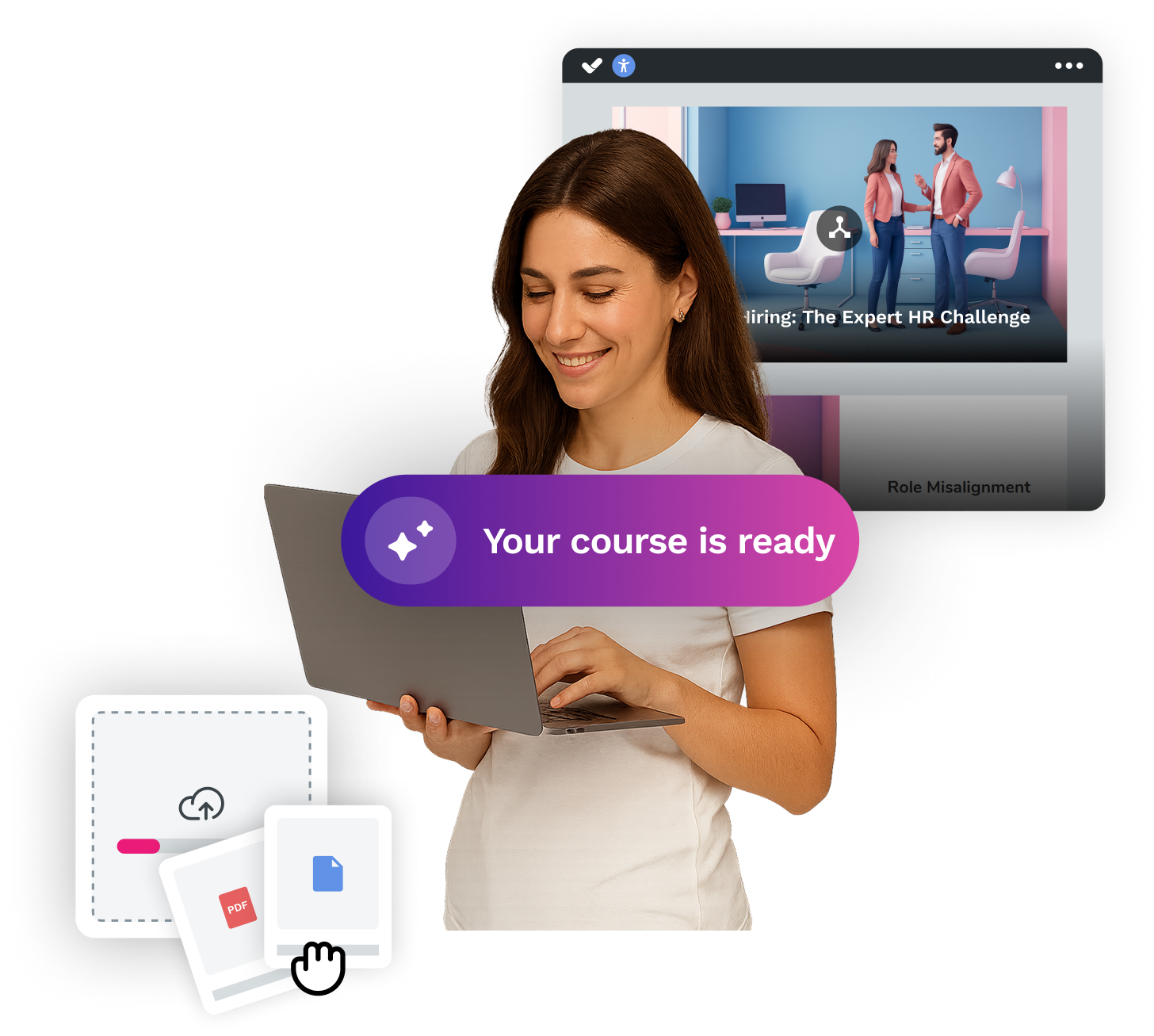

Looking for an easy, agile and efficient authoring tool?
Create accessible, engaging and dynamic e-learning courses with artificial intelligence in minutes.